On-site provisioning
Audience: the installer standing in the equipment room. Time: ~20 minutes. You need: the node, two network connections, and the site code.
1. Cable it
- Uplink port → the site's internet-capable network (any network that can reach the internet outbound; no inbound rules needed).
- Camera/device port → the surveillance LAN (the network the cameras, switches, and radios live on).
Which port is which?
The node's local UI shows both interfaces live under Connectivity with a green dot when a link is up — if in doubt, plug in and look.
2. Run the wizard
From a laptop on the same network, open http://<node-ip>:5000. The
first-boot wizard asks for exactly one thing you must know: the site
code that shipped with the paperwork. Server coordinates come pre-filled
from factory provisioning.
Submit, and the node registers itself: it joins the encrypted overlay, announces to the monitoring plane, and starts its first LAN discovery.
3. Verify — the green-dot walk
Open the node UI's Node info tab and check, top to bottom:
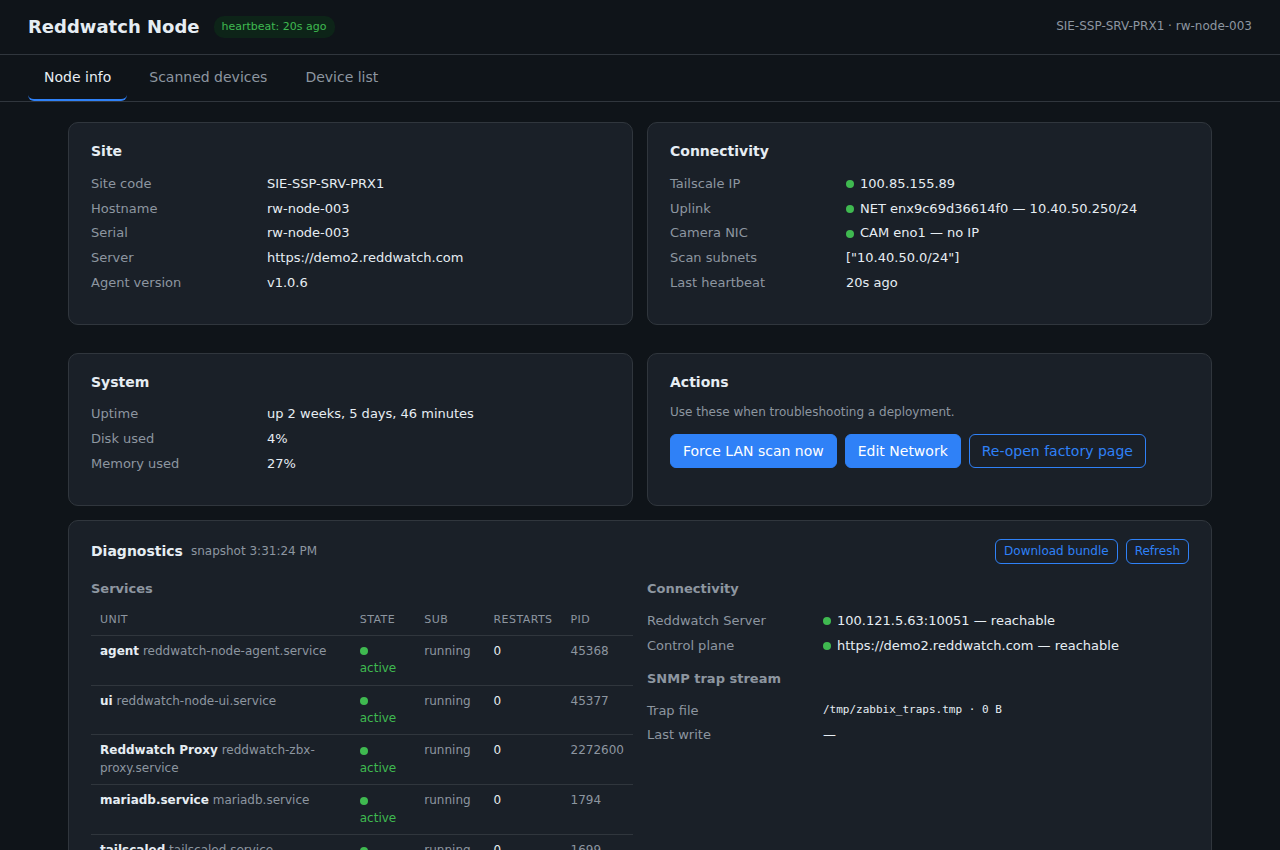
- Heartbeat badge fresh (seconds, not minutes)
- Connectivity: uplink green, camera NIC green, scan subnets listed
- Services: every unit
active - Reddwatch Server and Control plane both reachable
Then confirm in the portal (or have the ops desk confirm) that the site's devices are appearing:
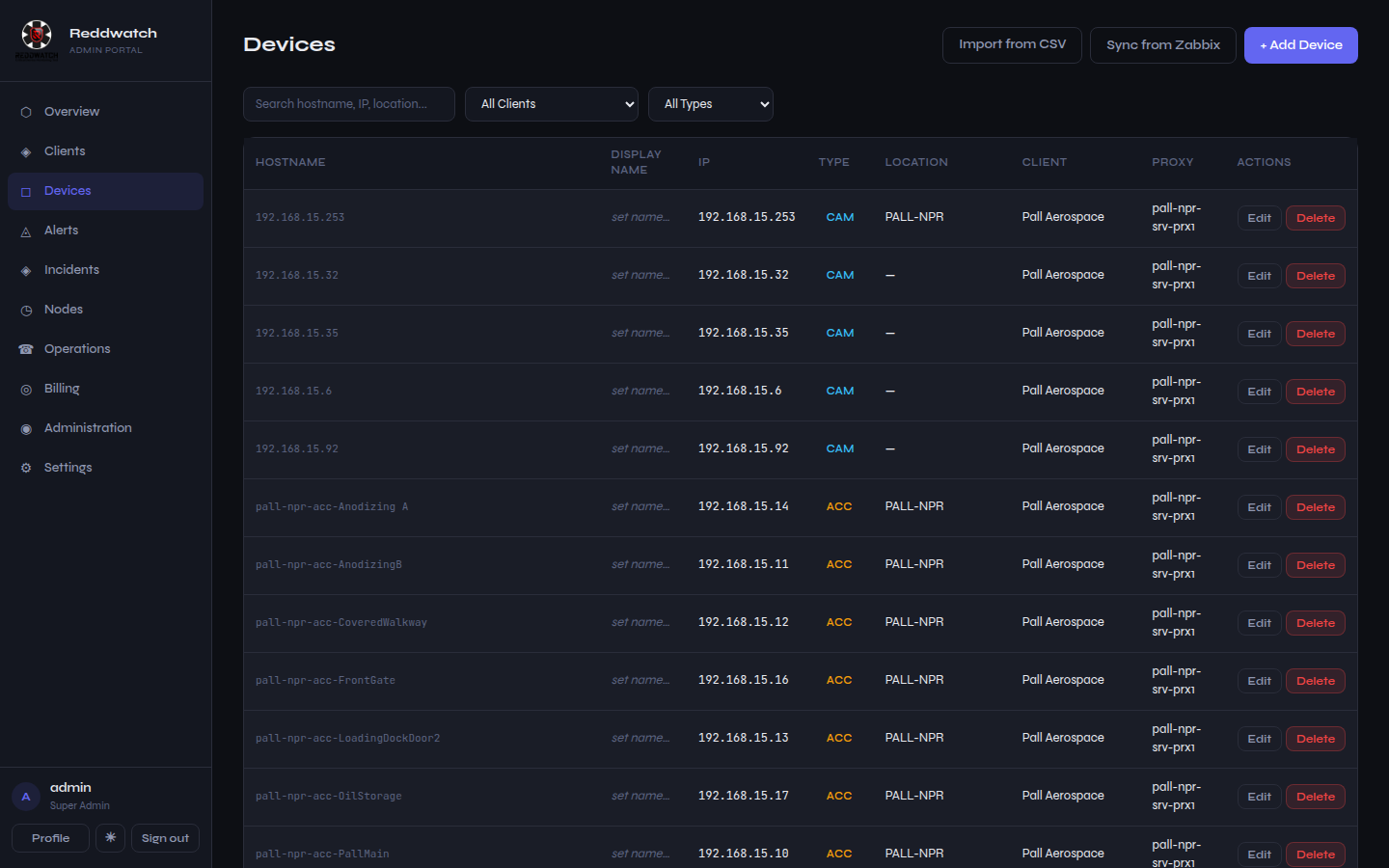 Discovered site devices with type, location, and live status.
4. Hand off
- Note where the node is racked and which drops feed it (future you will ask).
- The ops desk takes it from here: device classification, topology mapping, alert routing, and camera reference frames are portal-side work.
If something's red
| Symptom | Check |
|---|---|
| Wizard can't reach server | Uplink port on the wrong network; captive portal; site blocks outbound 443 |
| Heartbeat stale | Give it two minutes after the wizard; then power-cycle once |
| Camera NIC "no IP" | Wrong port on the surveillance LAN, or the LAN needs the node's static IP reserved |
A service not active |
Download bundle on the diagnostics tab and send it with the ticket |
The node needs nothing else from the site: no VPN, no port forwarding, no firewall changes. Everything it does is outbound.